

DevTools
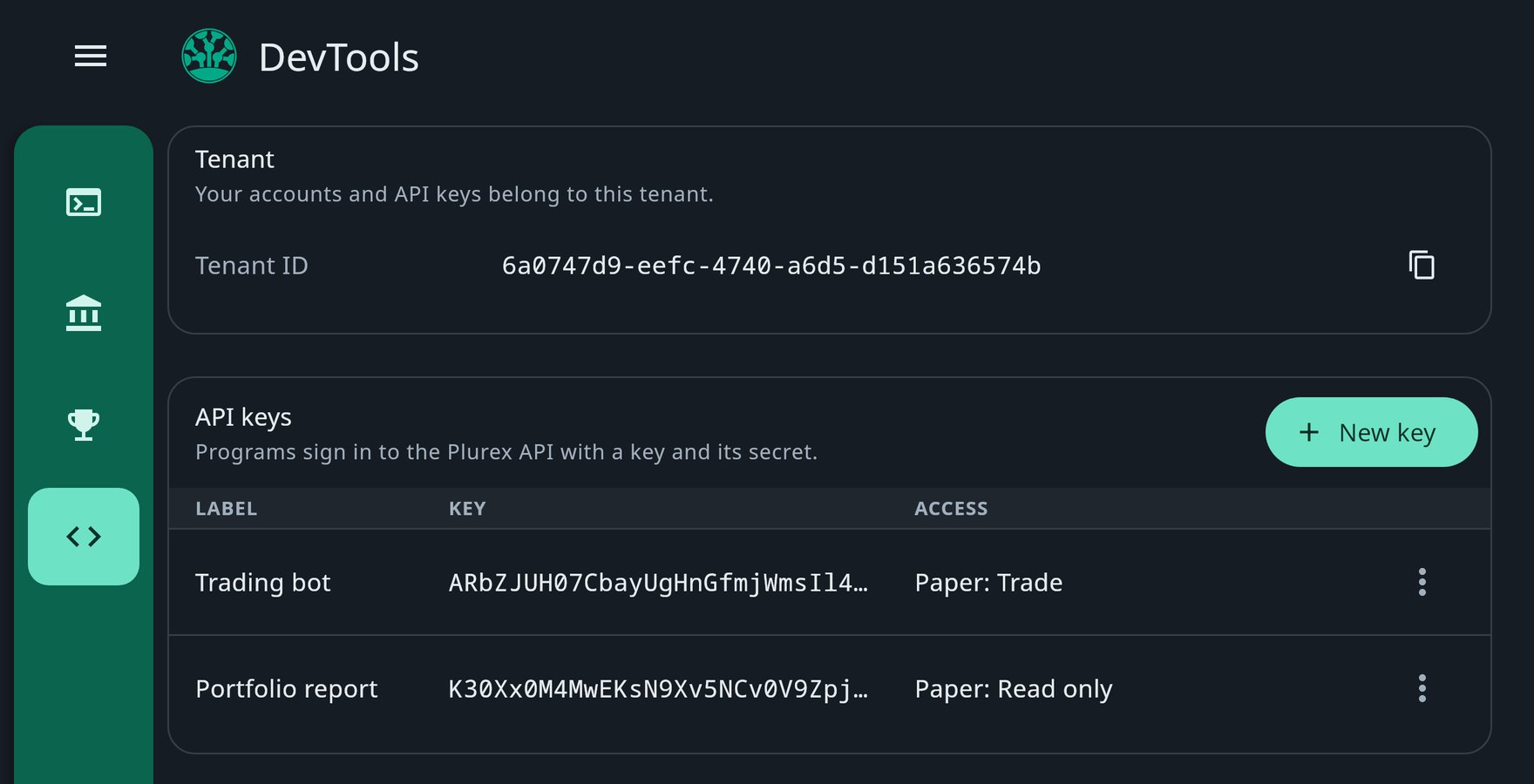
Open DevTools from the sidebar. It shows:- the Tenant ID you are working as, with a copy button: yours, or a selected organisation’s. Its accounts and API keys belong to this tenant, and tenant-wide operations such as List accounts take it;
- API keys: each key’s label, its public key, and a summary of its access, such as
Paper: TradeorPaper: Read only · Real: Trade · 2 accounts.
Create a key
1
Start a new key
Choose New key and give it a Label named after the program that will use it, such as
Trading bot.2
Choose its access
A new key starts with Trade on paper accounts and No access to real accounts. Change it as described
below. You can edit it later.
3
Create it
Choose Create. If two-factor authentication is on, enter your 6-digit code.
4
Save the key and secret
Copy the Key and the Secret into a secrets manager or your program’s configuration. The secret is shown only
once and cannot be recovered; if you lose it, delete the key and create another.
Choose what a key can do
The access editor has four sections. Everything starts off, access only adds, and a key can do something if any section allows it.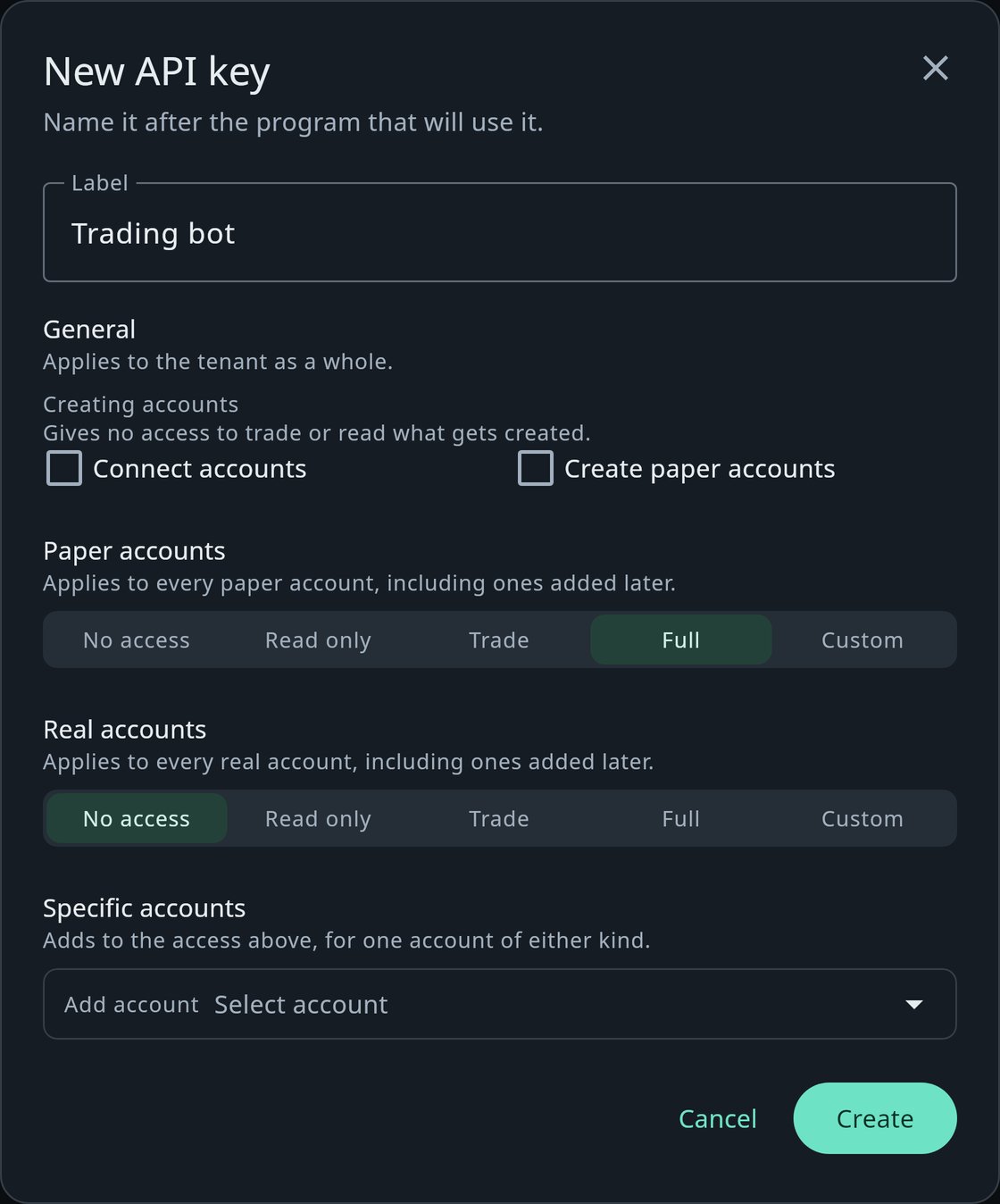
Presets
Paper accounts, real accounts and each specific account take a preset:
Only Full manages a paper account’s balance and fee tier, so a key with Trade cannot give itself funds. A
combination that matches no preset shows as Custom.
Permissions
Choose Custom to set each permission yourself: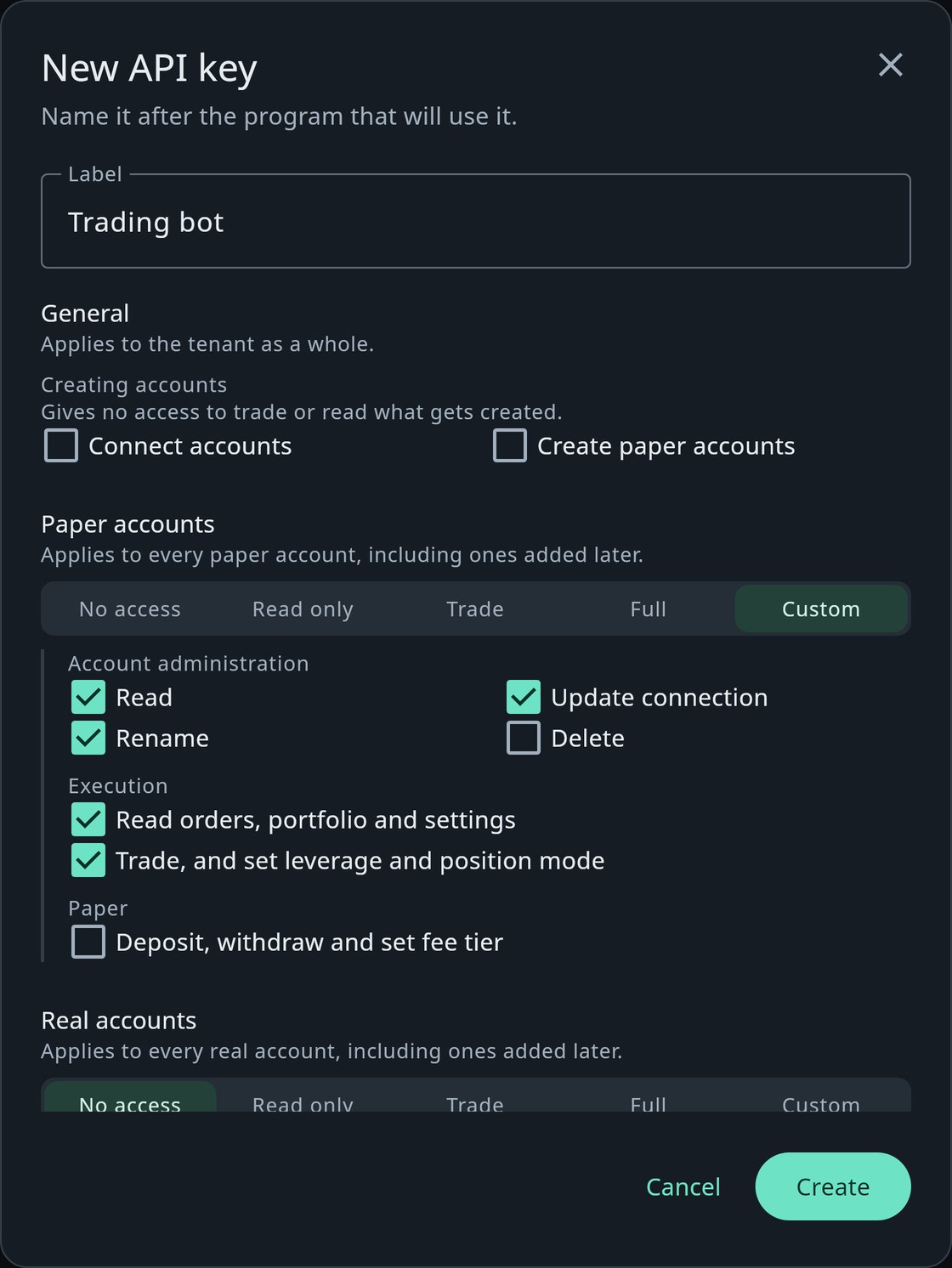
Administration and execution are separate: renaming or deleting an account shows nothing of its orders or balances, and
trading it does not let the key rename or delete it. Any access to an account also lets the key see it in List accounts
and Get an account.
Trade includes leverage and position mode because they decide how an order trades. There is no cancel-only
permission.
Specific accounts
Under Specific accounts, choose Add account and pick an account. It is added with Read only, in a card of its own, and you can give it any preset or a custom set. Remove it with the × on its card.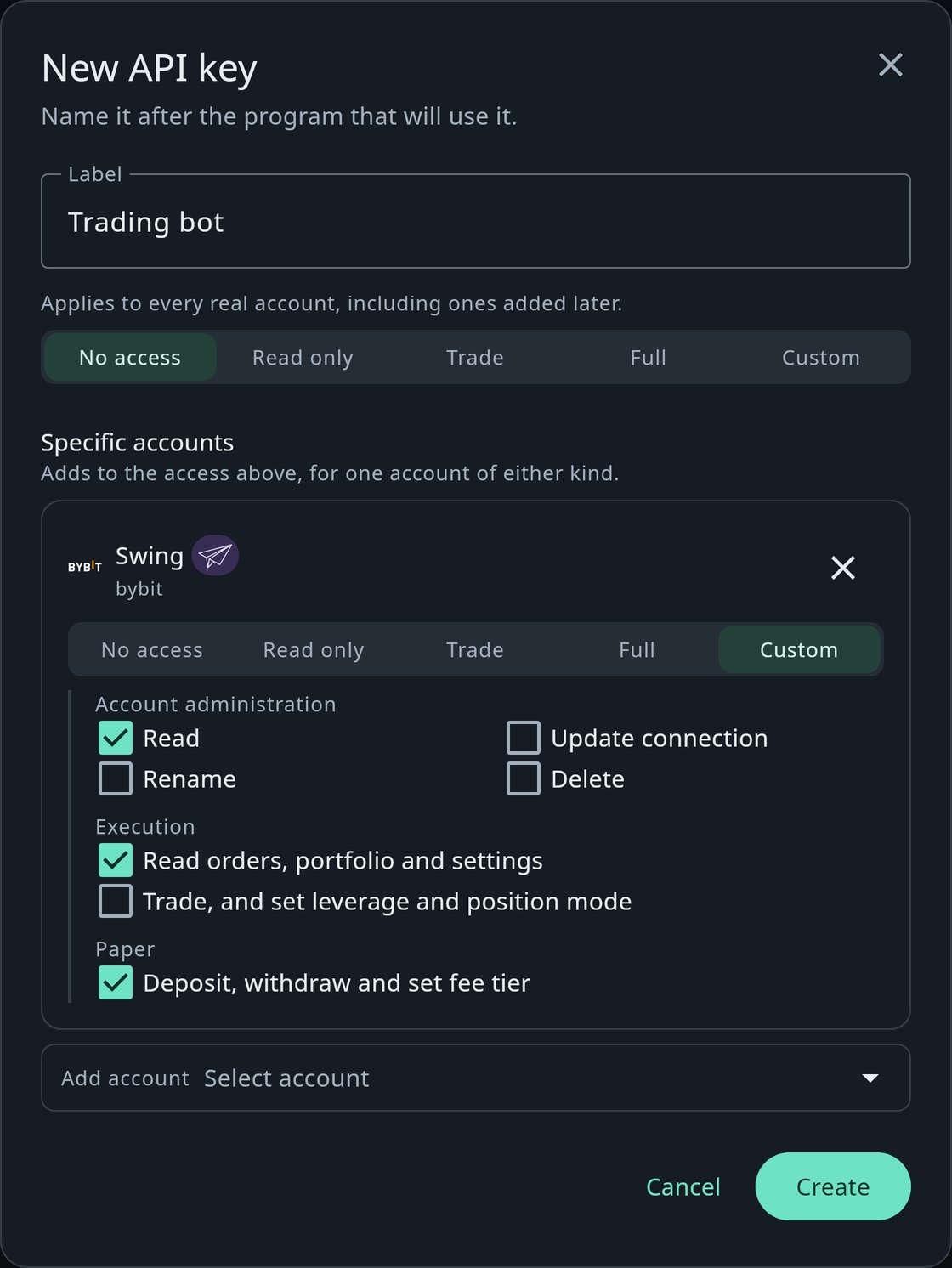
Accounts a key creates
Connect accounts and Create paper accounts give no access to what gets created. A key that creates paper accounts and then trades them needs access through Paper accounts, which covers paper accounts added later. A key with only the creation permissions can create an account but cannot read or trade it.Typical keys
Every key can read market data and discover hosts and markets, with no access granted.
Edit or delete a key
Edit access opens the same editor for an existing key. A change applies from the key’s next request, so a program can keep the same key and secret. Delete removes the key: programs using it stop working at once, and it cannot be undone. Both need your 6-digit code when two-factor authentication is on, as creating a key does. Only the tenant’s owner, signed in to the web app, can create, edit or delete its keys: you for your own, and the owner for an organisation’s. An organisation’s members see its tenant ID but not its keys. A key cannot change its own access or create another key.Keep keys safe
- Create one key per program, with only the access it needs, so you can revoke one without stopping the others.
- Keep the secret on your own servers: never in browser or mobile code, and never in source control.
- Keys do not expire. Delete a key you no longer use, and replace one you think has leaked.
- Turn on two-factor authentication, so a stolen password cannot create or widen a key.
404 AccountNotFound for an account the key cannot see at all, and
403 Forbidden for an action it is not allowed on an account it can see. See Authentication.